

Creative Studio
Create images, explore video and work with audio using the capabilities of your chosen model.
From your brief to content you can use.
Images, video and audio. Choose what you want to make, find an available model, then prepare your work for what comes next.

Give a product its moment
Introduce a product, explore a visual direction for your brand, or prepare an idea for a presentation.
A violet glass product on a metallic surface, with soft lighting and quiet space around the subject.
How would you start something similar?
- Choose an available image mode, then select a model.
- Add your brief and a product reference if the model supports one.
- Review the aspect ratio, options and cost, then confirm generation inside the Studio.
A suggested brief to try, not this artwork’s original input. Check the model options available to your account.
Your idea. Your creative decisions.
Generation is a starting point. Understand the inputs, prepare your clips, and connect tools when the idea needs more steps.

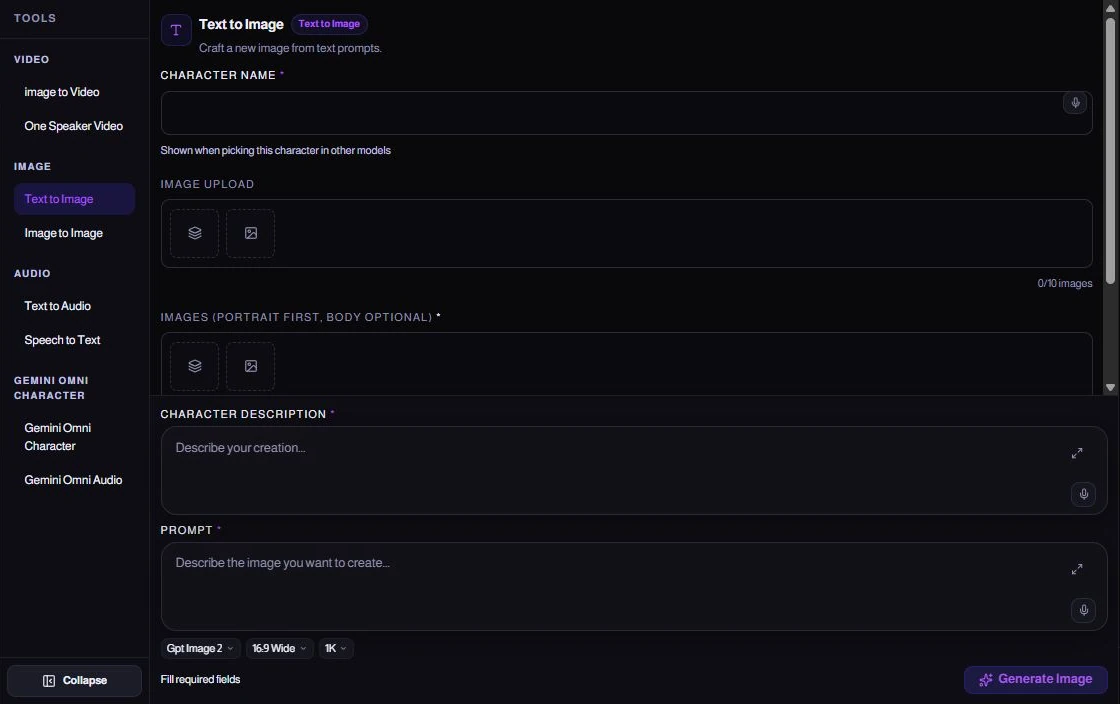
Choose what to make. Then how to make it.
Start with the category and creation mode. Your model determines which fields, references and options appear.
- Images, video and audio through enabled modes
- A written brief and supported references
- Cost review and confirmation before submitting
The details behind every piece of work.
01Start with the kind of work
The category and creation mode determine the available models. You can choose what you want to make before deciding on a model name.
02Inputs that fit the model
References, dimensions, duration and options vary by model. Follow the fields on screen rather than assuming every model accepts the same inputs.
03Review the cost before confirming
Review your settings, current cost and confirmation. Changing options can change the cost; some operations display a usage-based estimate.
04Understand and reuse a result
Result details bring together the output, inputs and settings. Copy the brief, download the result or prepare another generation. Submitting again needs a new confirmation and cost.
05Continue in the editor
Arrange video, audio and music in tracks, then trim and preview before exporting. Generation and editing are separate steps you choose to move between.
06Build a path in Space
Connect tools, configure each step and run the workspace after reviewing missing inputs. Adding a tool or viewing this example does not start generation.
Available models, fields and actions depend on platform settings, your account access and workspace. This presentation does not generate content or spend credits.
Where do you begin?
A clear way to work
- Choose a creation mode and a model available to your account.
- Add your description and any references supported by that model. Review its settings and displayed credit cost before confirming.
- Review the result, download it or reuse its description. Open the editor when you want to assemble video, images and sound.
Before you start
Does every model have the same controls?
No. Reference inputs, duration, aspect ratio and other settings depend on the selected model. The Studio displays its supported fields.
Does this page generate content?
This public page contains prepared illustrations and real interface captures. Creating content happens inside Studio after sign-in and the applicable credit confirmation.
Explore the rest of the ecosystem